

Play Ranked on W3C

Do you think You have what it takes to compete with the best?
This is how you join us on Warcraft 3 Champions.


Installing the Client
Playing on W3Champions requires a custom client to be installed in addition to your legal copy of Warcraft 3.
Go to w3champions.com and click the Download button to find installation guides for your operating system. Download the approriate launcher and install it on your system.
W3Champions does not require an additional account - you simply login via battle.net
After installation and logging in, continue to the next section.
Choose the Castle Fight Game Mode
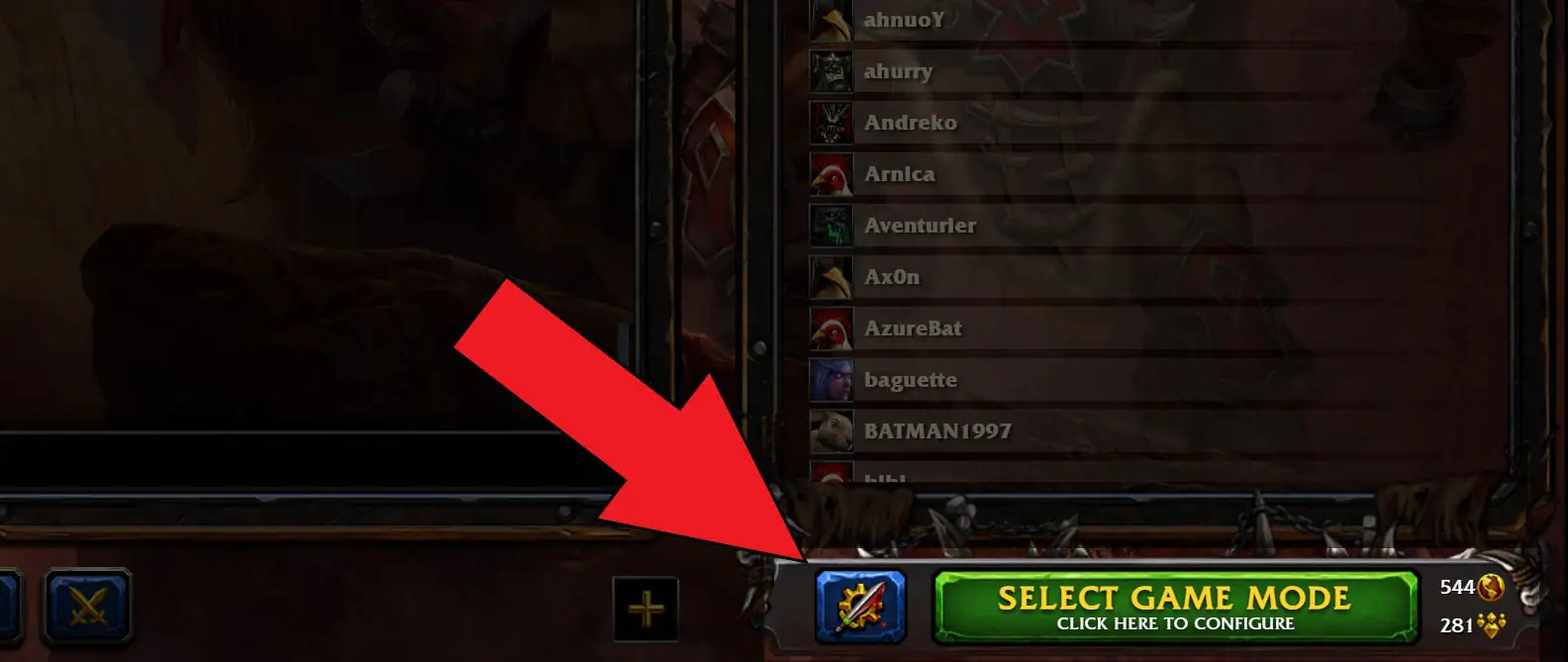
After successfully logging in, you must first configure the correct game mode.
1. Click the sword and cog icon or the green button in the bottom right corner to open the game mode selection.
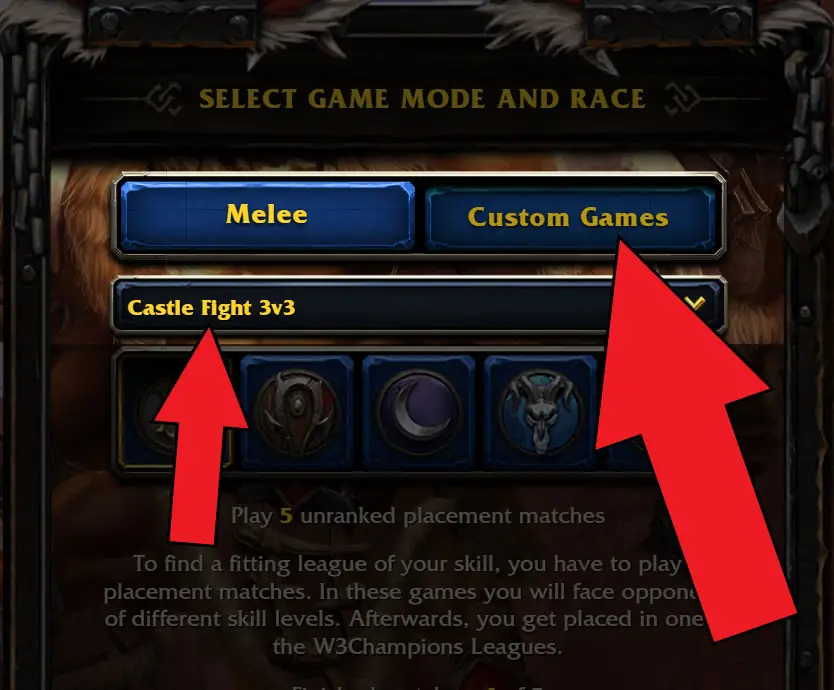
2. In the game mode selection window, first select Custom Games and then find Castle Fight 3v3 in the list of available game modes.

3. Now you can press the big green button to queue.
Peak queue: 18:00-22:00 CET/CEST
Join the Castle Fight Chat Lounge
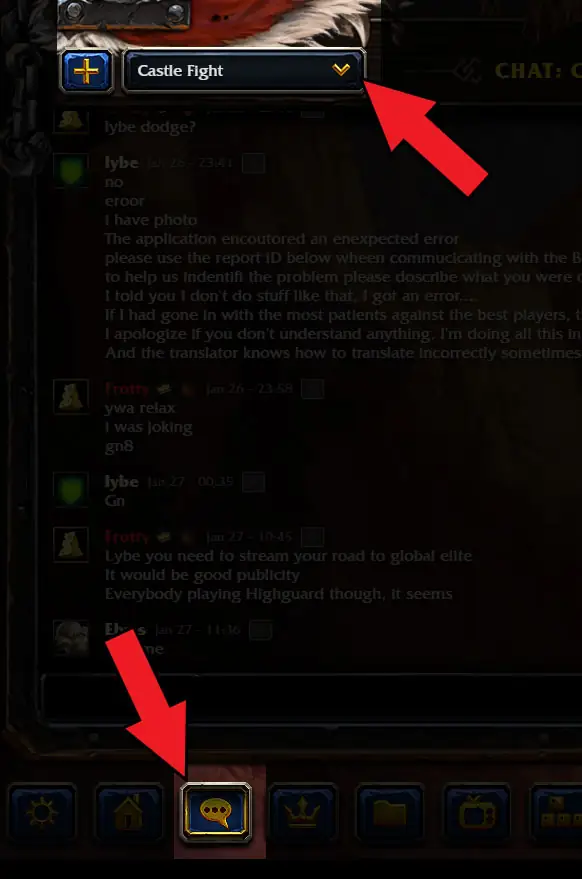
W3Champions offers a number of public chat lounges for each game mode, including Castle Fight.
To join the Castle Fight lounge, click the chat bubble icon at the bottom left and then select the Castle Fight lounge from the list of public lounges.
Here you can chat with other Castle Fight players, find teammates for your games and discuss strategies. It is also a good place to check whether people are queueing before or after the usual European prime time.
Other useful features
Here's a quick overview of a few of the other useful features W3C offers.

From left to right, the buttons shown on the screenshot are:
Options - allows a selection of options that change how W3C behaves, how W3C opens up and allows you to optimize your network connection to their servers
Home - the default screen on which the app opens up. It gives you a quick overview of the latest changes to W3C and smaller version of lobby chat.
Chat - here you can choose from a number of public chat lobbies for each map as well as join/create custom chat lobbies to connect with other players.
Profile - a very handy window that lets you track your (and other players') MMR, level, winrate, match history etc. as well as change your profile picture.
Replays - this screen give quick access to you replay directory.
FloTV - a custom feature that gives you an option to spectate ongoing or recently finished matches on W3C for any map.
Hotkeys - another option to customize keybinds in Warcraft 3, if the ingame hotkey menu or other third part apps do not offer your what you want.
Friends - here you can add, delete and check the online status of your friends
Custom game - this menu allows you to create/join a private lobby in W3C, allowing you to play only with players of your choosing.
Invite friend to team - a plus button that is further to the side than the rest. After you finish your placement matches it offers you an option to team up with other players and queue on the public ladder. Each AT (arranged team) has its own MMR that does not impact your solo MMR.